
Work the WhatsApp inbox处理 WhatsApp 收件箱
Every conversation in one place — photos, voice notes and all — with the ones needing a human at the top. Works the same on a phone.所有对话集中一处,需要人处理的排在最前面。
这篇指南的正文目前只有英文版。标题、摘要与导览已翻译;内文仍在翻译中。
One inbox for every number you have connected, shared by the whole team. It looks like WhatsApp because it is meant to — the point is that nobody has to learn anything.
Getting there
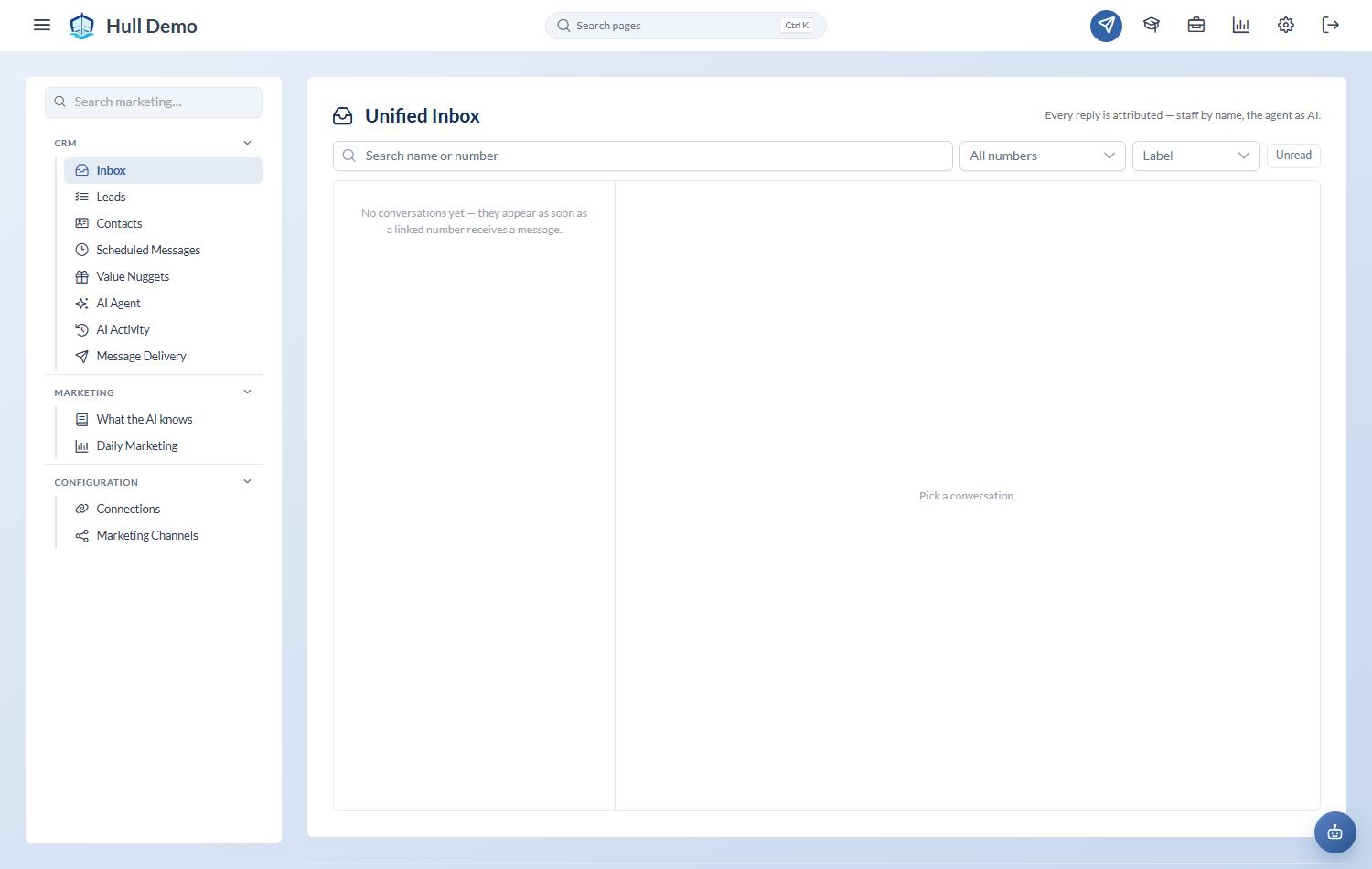
Marketing → Inbox — the megaphone in the top bar.
Finding one conversation
The search and the filters sit in one row under the page title, full width, where there is room for them — not squeezed into the conversation list. Search by name or number, pick a number if you run several, and filter by needs a human, unread, or by label.
Needs a human is the important one. Those are the conversations the assistant stepped back from, and the ones the Leads page will be nagging you about.
A conversation with the assistant switched off now says so, and can be filtered to. A muted chat and a broken one used to look identical from the list, which is how a stretch of unanswered messages went three weeks without anyone knowing why. The counts on those chips are the server's, so they are the real totals rather than a count of whatever happened to be on screen.
Mark as unread puts a thread back on the list and closes it, because opening a conversation clears its unread count immediately; staying on screen would set it straight back to zero.
The preview line is the last thing actually said — sent or received, with "You:" in front when the last word was yours. An unanswered customer is therefore obvious at a glance. A draft the assistant prepared but nobody sent, and an internal note, are not messages to the customer and no longer sit there pretending a thread was answered.
Opening a contact from Leads or Contacts always finds them, whichever of your numbers the conversation is on — the inbox moves to that number for you. It used to report "no conversation" for anyone on a number you were not currently looking at.
The assistant has three gears
At the top of the inbox you can see what the assistant is currently doing — and owners, branch admins and heads can change it right there:
- Off — nobody gets an automatic anything. The per-conversation switch is greyed out, because there is nothing for it to control.
- Suggest — the assistant reads every conversation and drafts a reply instead of sending it. The draft appears in the thread as a dashed "suggests — not sent" card. Use as reply drops it into your composer to adjust and send under your own name; the customer never sees anything you did not send. This is the mode to run while you are still deciding whether to trust it.
- Auto-reply — the assistant answers enquiries itself, within its rules.
The gear here is a label, not a switch
What you see at the top of the inbox is what the assistant is doing on the number this conversation is on. It is there so you know, before you reply, whether anything is answering behind you.
To change it, go to Marketing → Connections and set it on the number. There used to be a switch here too, and having two controls for one behaviour is how a school came to believe the assistant was off while a line went on replying. See Connect your WhatsApp number.
Read the list in order
Conversations flagged for a human sort to the top, with an amber marker. Those are the ones the assistant decided it should not answer — a complaint, a refund question, someone asking to confirm a booking. Start there.
Everything else is in the usual order, most recent first.
The thread
Ordinary chat bubbles, day separators, delivery ticks. Two things are different from your phone:
- Outbound messages say who sent them — the staff member's name, or the assistant. Nobody has to guess whether a customer already got an answer.
- Internal notes are team-only. Write anything a colleague needs to know; the customer never sees it.
Photos show in the thread, videos play, documents open — and voice notes come with their words. An incoming voice note is turned into text automatically, in whatever language it was spoken — Malay, English, Chinese, or all three in one sentence — so you can read it without pressing play, and the assistant can answer it. Older voice notes have a Transcribe button.
Replying
Type and send. In Auto-reply mode, replying automatically pauses the assistant on that conversation, so it will not talk over you mid-exchange. It also clears the "needs a human" flag, because a human just dealt with it. (In Suggest mode it keeps drafting — drafts cannot talk over anyone.)
There is a per-conversation switch if you want the assistant back on afterwards, and its tooltip always says what it is actually doing in the current mode. It also tells you how long the pause has been running — "paused 3 days ago" is the difference between a conversation somebody is handling and one everybody has forgotten.
Did it arrive?
A tick here means WhatsApp accepted the message from us. Whether it reached the family's phone is a different question, and Marketing → Message Delivery answers it — delivered, read, or not arrived at all. Check it when somebody says they never heard back. See Connect your WhatsApp number.
Sending a photo, a video or a document
The composer takes attachments now. Add a photo, a video or a document to a reply the same way you would in WhatsApp itself, and it goes to the family with your message and stays in the thread as part of the record.
Useful for the things the desk was previously sending from a personal phone — a timetable, a receipt, a photo of the pool — which then existed nowhere anyone else could find.
The contact drawer
Open the contact beside the thread to see and set:
- the students and the stage each is at — worked out from what has actually happened, in the same words the Lead Queue uses: enquiry, qualified, waiting approval, trial booked, no-show, trial attended, not signed, no booking, converted, frozen, stopped, declined, lost
- tags, and the channel the enquiry came from
- anything the assistant is waiting for you to approve
- any scheduled follow-ups queued for this family
You can rename a contact. WhatsApp names are whatever the customer set — "Mummy", an emoji, a shop name. Give them something your team will recognise; the original is kept, and clearing the field puts it back. An existing customer shows as "John's parent" automatically.
If the family is already a customer, the Parent on file badge links straight to their full record — packages, balances, statements — one click away. A trial-booked lead links to the Trial List rather than duplicating it.
Labels say why, not what
Labels record what explains the outcome — someone saying they intend to book, or the thing blocking them — rather than the topic of the conversation.
That is a change. Topic labels like *Price enquiry*, *Schedule question* and *Hot lead* have been retired, because almost every enquiry is about price and schedule, so labelling it told you nothing you could act on. "Waiting for spouse to agree" tells you what to do next; "Price enquiry" does not.
How long conversations are kept
Nothing you need for a decision is thrown away, but the media does not pile up forever:
| Kept for | |
|---|---|
| Voice notes (the audio) | 30 days — transcribed first, so the words stay |
| Other photos, files and media | 90 days |
| The messages themselves | 24 months |
| Contacts, leads and labels | Never removed |
The last row is the point. A parent who says "call me in six months" is still there in six months, with their history and their labels. Shared files your team uploaded are left alone too.
Seeing only your branch
If your numbers are assigned to branches, staff who run one branch see that branch's conversations and nothing else. Numbers nobody has assigned stay visible to everyone, so no enquiry hides. Owners and marketers see all of them.
The number filter at the top of the inbox is there for everyone, whatever their role — use it when you have more than one number connected. See Connect your WhatsApp number for assigning one to a branch.
Queue a message for later
The clock button in the composer schedules a message for a day and time — for when a parent says "get back to me Thursday". Anything queued for this conversation shows in a strip above the composer.
Beside it, the nugget picker sends something from your library — a video, a guide, a tip — and marks what that family has already had.
Both are covered in Schedule follow-ups. The full list of what is queued lives on its own page in the menu, and inside each contact's drawer — it is no longer a button beside the filters, where it read as one of them.
What the assistant will not do
It stops and flags a human whenever the conversation reaches anything that needs judgement — money, complaints — or when it has replied several times in a row without a human involved. Silence plus a flag is deliberate: a wrong answer about a refund is worse than a slower one.
It can *prepare* a booking or a package extension for you, but it never confirms one itself — those arrive in the approvals queue for a person to tap.
Related: Connect your WhatsApp number · Approve what the agent proposes · Schedule follow-ups · Work the lead queue · Work the contacts queue.