
Sell a package销售配套
Take a family through checkout — one cart, several children, paid now or billed later.带家庭走完结账——一个购物车、几个孩子,现在付或之后再开单。
这篇指南的正文目前只有英文版。标题、摘要与导览已翻译;内文仍在翻译中。
Checkout is where a sale becomes money. One trip through it can cover two siblings and three packages, and produces a single invoice for the family.
1. Open Checkout
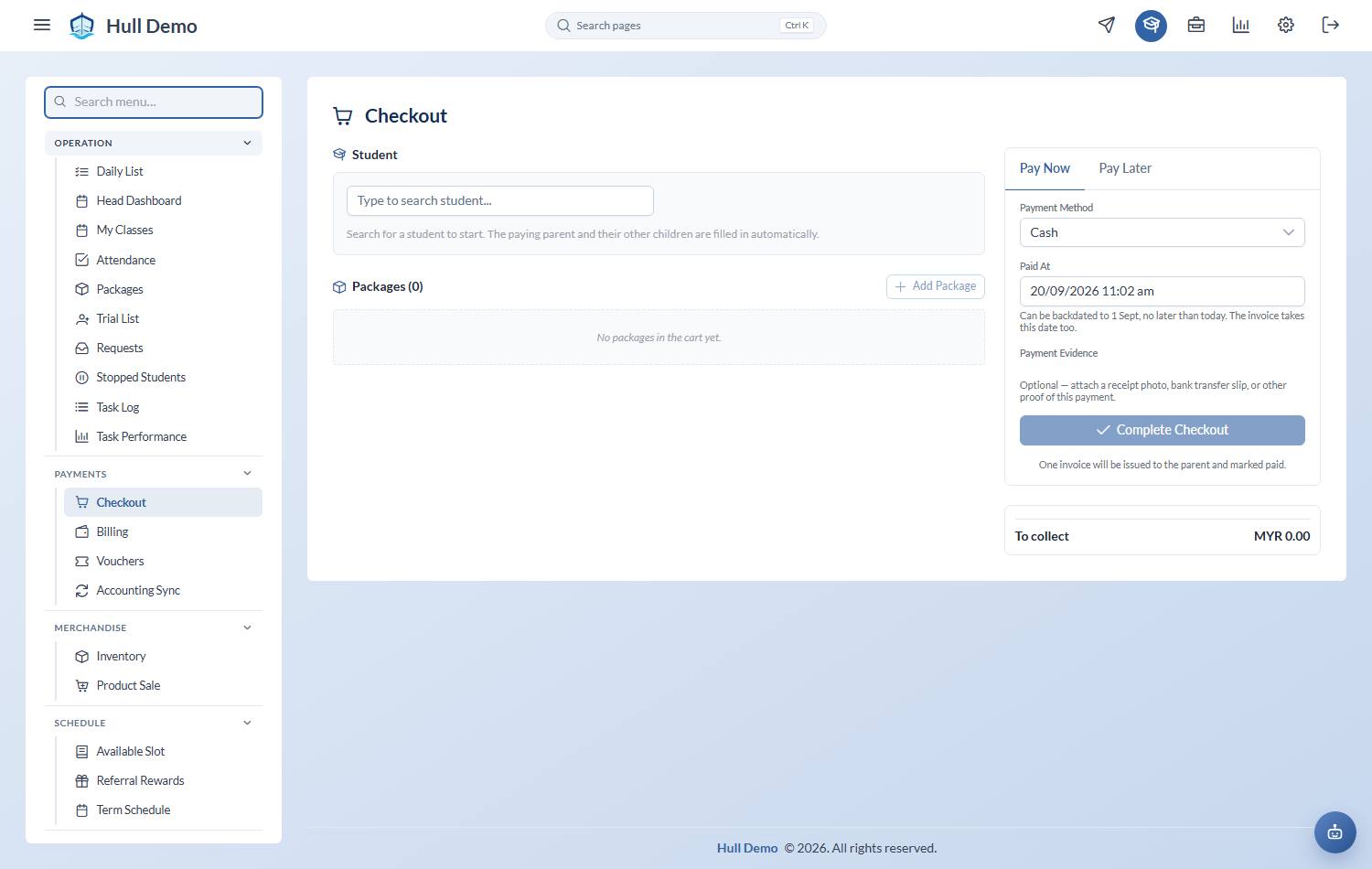
Payments → Checkout. You can also start it from a student's profile, which pre-fills the family.
2. Build the cart
For each item: choose the package type, then the student or students it is for.
Add Package puts another line in the same cart. Two children, two different packages, one transaction — that is the intended way to sell to a family.
- A family package can name more than one child. They share the pool of credits, and either child spending draws it down.
- A term package also needs its term schedule — the fixed set of dates the term runs. Picking or changing the schedule re-prices the cart on the spot, so the total you read back to the parent is the one for that term.
3. Apply any discount
Use Apply promotions and Apply vouchers on the line. The running total updates as you go, showing the discount, the SST, and the amount due.
The order they apply in is fixed and is not the order you click them. See Apply a discount if a total is not what the parent expected.
4. Decide how it is being settled
Two paths, and the choice is a real one:
Pay Now — record the method (cash, transfer, card, and so on) and attach the evidence. If the family has account credit from a previous cancellation, the credit notes available appear here and are applied *before* cash, oldest first, so you only collect the difference. Finish with Complete Checkout.
Issue Invoice (Bill Later) — no money changes hands now. The invoice is issued as a genuine receivable and sits on the family's statement until it is paid. Use this for "I'll transfer tonight", never as a way of dodging the payment screen.
5. Check it landed
- The invoice appears under Payments → Invoices.
- The package appears on each child's profile, ready to fund a booking.
- If it was paid in full, the receipt is emailed to the parent automatically.
What the sale does *not* do
It does not put anyone in a class. Selling and booking are separate on purpose — see Book a child into a class.
Related: Record a payment · Check what a family owes · Invoices, payments and credit notes.