
Check the month's payroll核对当月薪资
Review what every coach and manager is owed, open the workings behind any figure, and export the calculation for sign-off.查看每位教练与主管应得多少,打开任何一个数字背后的算式,并导出计算供签核。
这篇指南的正文目前只有英文版。标题、摘要与导览已翻译;内文仍在翻译中。
Payroll shows what each member of staff has earned for a month, and where every figure came from.
1. Open Payroll and pick the month
From the sidebar, Management → Payroll. Set the month, and optionally filter by role or branch.
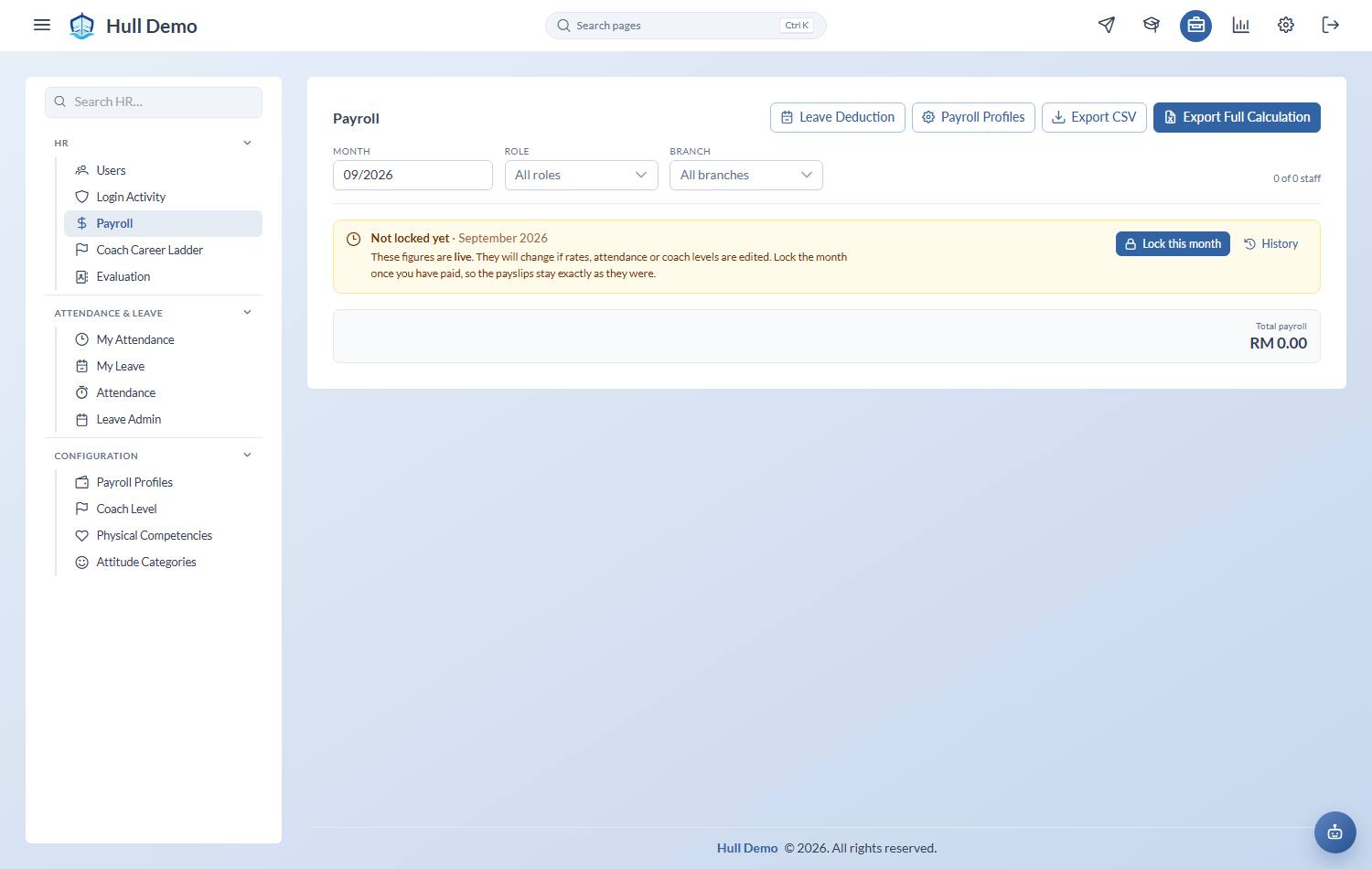
2. Read the two sections
- Coaching staff — coaches and part-timers, paid per session taught.
- Management — salaried roles.
Each row carries Basic, Commission, Bonus, Allowance and a Total. The columns that appear depend on how your academy pays; a merchant with no bonus scheme will not see a Bonus column.
3. Open a payslip
Expand any row to see the workings: the sessions counted, the rates applied and the arithmetic that produced each figure.
This is the answer to "why is this number what it is", and it is worth checking one or two every month before paying.
4. Export for sign-off
Two exports sit at the top:
- Export CSV — the table as you see it, for a quick look in a spreadsheet.
- Export Full Calculation — the workbook for whoever approves the payout: the summary, the items behind each total, the arithmetic behind each item, the counts those used, and the rates applied.
The workbook is built from the same figures as the screen, so the file and the page cannot disagree. Sessions are listed by date, and each is identified by a Student Id — the file never carries a parent's phone number or email, so it can go to an accountant or an auditor without a second thought.
Unpaid leave comes off the month
Approved unpaid leave is deducted automatically. The rate is the person's monthly basic divided by a number the owner sets — either a fixed figure the academy has always used (26 is the common one), or the working days in that person's own schedule for that month, which differs between a full-timer and a weekend coach.
Whichever you choose, the figures are frozen into the run when the month is finalised, so a schedule edited in November cannot reach back and change October's payslip.
Things worth knowing
Unlocked figures are live. While a month is unlocked, its numbers move if someone edits a rate, corrects an attendance, or changes a coach's level. That is why the month gets locked once paid — see Lock a payroll month.
Only taught sessions count. A session where nobody attended is not paid: it needs at least one confirmed Present. A Missed does not pay the coach either — the family was charged, but nobody was taught.
Rates are dated. A coach promoted this month is still paid last month at last month's level, and a raise dated next month cannot leak backwards.
Money can come off as well as on. A deduction takes an amount off one person's pay for one month — a course-fee instalment, last month's overpayment recovered — with the reason printed on the payslip beside it. A Deductions column appears only when somebody has one, and the Total is net of it. Like an allowance, a deduction is refused on a locked month.
Allowances say which kind they are. A payslip row reads *Recurring* when a payroll profile produces it every month and *One-off* when somebody keyed it in for this month only. See Set up pay rates.
Somebody paid under two roles gets one row. A branch admin who also coaches appears once, with their full total, and the row records which roles it paid.
Related: Lock a payroll month · Set up pay rates · Coach career ladder.