
Record what happened after a trial记录试堂之后的结果
The Trial List works out where every trial family stands, so the five that need you today are not buried under four hundred that do not.试堂名单会自己算出每个家庭走到哪一步,让今天真正需要你联络的那几户,不会被四百户不需要的淹没。
这篇指南的正文目前只有英文版。标题、摘要与导览已翻译;内文仍在翻译中。
The family that just attended a trial and has not signed up is the warmest lead in the academy. Recording the outcome is what makes the system chase them.
1. Open the Trial List
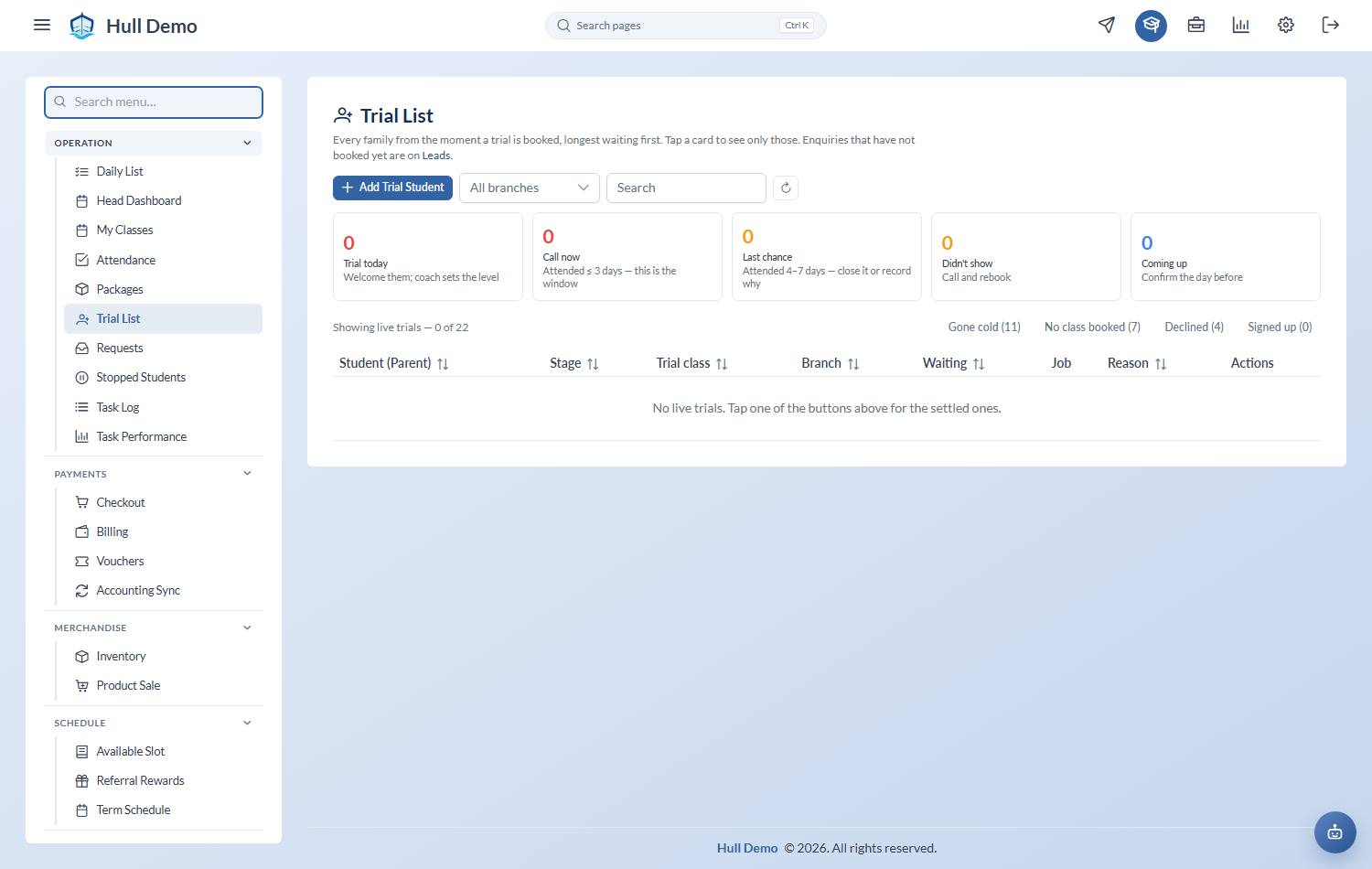
Operation → Trial List. It reads like the Leads page: a card per stage, with a count and the one line that says what to do. Tap a card to filter.
The page works the stage out for itself — from the trial that was booked, whether the child turned up, and whether a package has been bought. Nobody has to remember to change a status, which is what used to go wrong: on one academy 432 of 457 rows had gone stale and the twenty-five families who actually needed a call were buried underneath them.
| Card | What to do |
|---|---|
| Trial today | Welcome them; the coach sets the level |
| Call now | Attended in the last three days — this is the window |
| Last chance | Attended four to seven days ago — close it or record why |
| Didn't show | Call and rebook |
| Coming up | Confirm the day before |
Those five are the live ones and the default view. The settled and cold ones — gone cold, no class booked, declined, signed up — are one tap away and never clutter the day.
2. Mark the outcome
They attended and are interested. Set them To Follow Up. They move onto the daily follow-up list until they buy or you close them off.
They attended and said no. Use Decline Student. The reason is now picked from your own list, not typed — a trial declines for reasons a paying student never would, so the list is separate from the stop reasons and kept under Settings → Exit Reasons. It also asks how you did, on the same five ratings parents use, so a decline over coaching reads beside a score. This is what later answers "why do we lose people at trial?" — "not interested" in eight spellings never could.
They never turned up. Mark the trial as not attended, or use No show from the Lead Queue. It is a different problem from a decline, and worth counting separately: no-shows are usually a reminder problem, declines are a fit or price problem. A family who never came back at all is declined with Never attended the trial as the reason, so the count is not lost.
The reminder is its own task now
The day before a trial, the desk gets a Trial Reminder — send the message. On the day itself there is a separate Serve Trial task — receive the family at the pool. Two jobs, two people usually, two outcomes: closing the reminder does not close the serve.
They used to be one task, which made a sent reminder and a served family indistinguishable — and the half that got forgotten was always the reminder.
3. When they sign up
Sell them a package at checkout. That purchase is what converts the student to Active and stamps the conversion date — the timestamp your conversion and time-to-convert numbers are built on.
See Sell a package.
Why the reasons matter
Declines with reasons become a report. Declines without reasons become an opinion at a management meeting. The categories your academy uses are set up under Settings → Exit Reasons — one list for stops, one for trial declines, one for freezes — so if a list does not fit what parents actually say, change the list. Reports → Feedback & Retention then shows trial declines on their own, never mixed into "students stopped".
A decline is recorded once, whichever screen you use
A trial can be declined from the Trial List or closed as Lost on the daily list, and those used to write different things — one left the task open for the overnight sweep to mark missed, marking the desk down for the job it had just done; the other left the student sitting in Trial, so the family stayed on the list and the reasons report never saw the answer.
Both doors now do the same one thing: the student's status changes, a countable decline is recorded with its reason and ratings, every open trial task for that family is closed as Lost, and the seat goes back.
- Declining twice counts once.
- A student who has already signed up cannot be declined at all.
- A no-show task closed as Lost records a decline, not a fourth kind of exit.
Related: Book a trial · Work today's follow-up list · Read the marketing dashboard.