
Set up your student types设定学生类型
Your own way of grouping students — and the three switches that change how the system treats each group.你自己的学生分组方式——以及改变系统如何对待每一组的三个开关。
这篇指南的正文目前只有英文版。标题、摘要与导览已翻译;内文仍在翻译中。
Every academy divides its students differently: children and adults, beginners and squad, grades, special-needs streams. Student types are how you define your own segments, and they reach further into the system than most settings.
Where
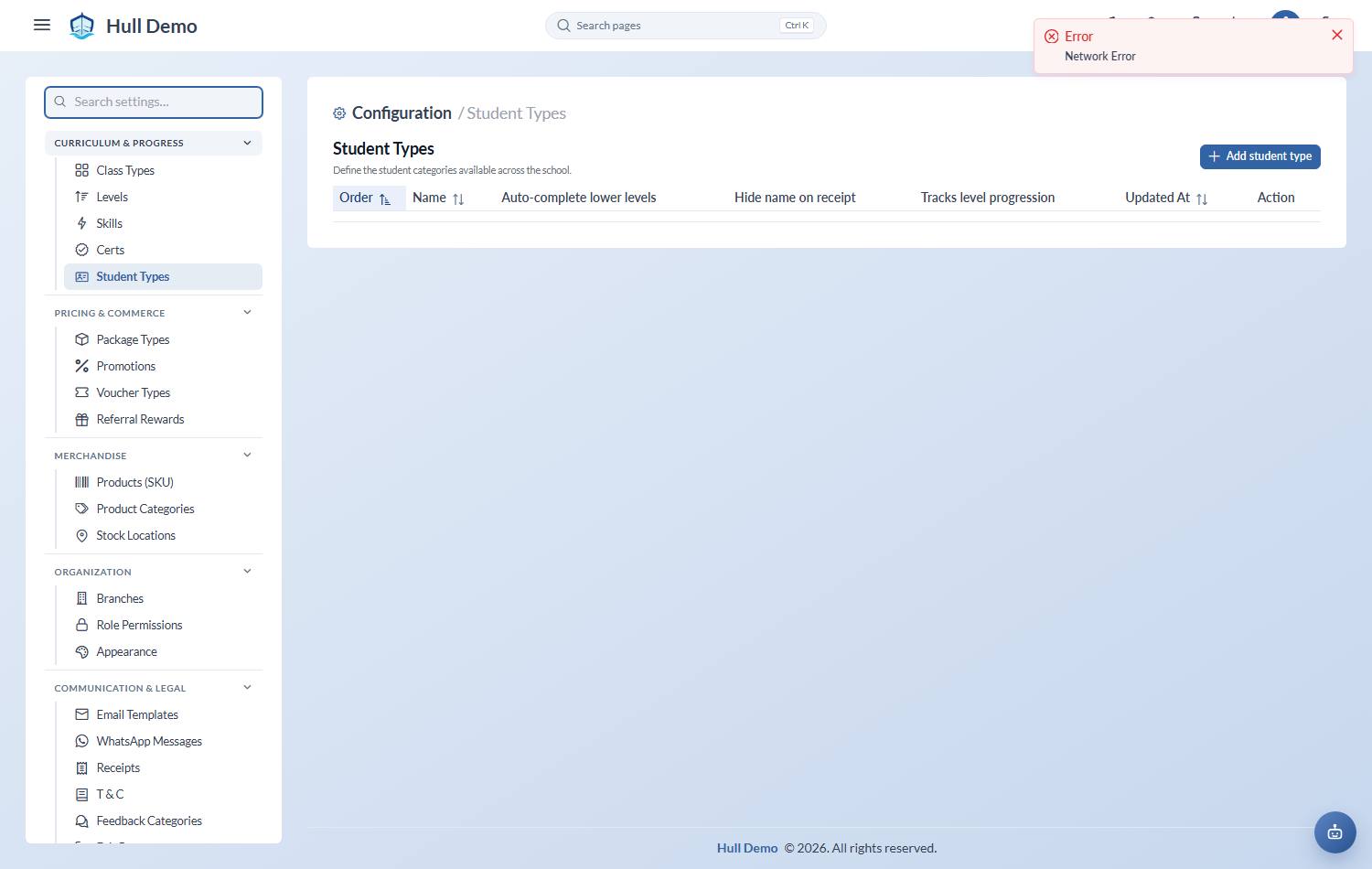
Settings → Student Types — the cog in the top bar — then Add student type.
What a student type controls
Set the Name and the Order they appear in, then three switches:
Auto-complete lower levels on assessment. When a student of this type passes an assessment, the skills of every level below are marked complete. Right for a group who plainly demonstrate the basics on the way through — an adult beginner who can already swim a width — and wrong where every skill should be earned individually.
Hide student name on receipt. The receipt shows the package but not the student's name. Academies commonly turn this on for adults, who may not want their name printed on a household receipt.
Tracks level progression. Whether students of this type climb the curriculum ladder at all, and appear in progress reporting. Turn it off for a segment where levels are meaningless — a recreational adult class, say.
What else the type decides
The student type is the filter behind several lists:
- Levels are scoped to a student type, so each segment can have its own ladder.
- Package types are scoped to a student type, so you sell the right products to the right group.
- Class types can allow only certain student types, so bookings are checked.
Which means a wrongly-set student type shows up as "why can't I sell them this?" or "why isn't that level in the list?" rather than as an obvious error.
How many to have
As few as you actually operate differently. A segment exists to make the system behave differently for that group; if two segments would have identical rules, identical levels and identical products, they are one segment with two names.
Related: Set up your package types · Set up your class types · Build your curriculum.