
Find your way around a student's profile熟悉学生档案页
One screen answers most parent questions. Here is what each part of it is telling you.一个画面回答大部分家长的问题。这里说明它每一块在告诉你什么。
这篇指南的正文目前只有英文版。标题、摘要与导览已翻译;内文仍在翻译中。
Nearly every question a parent asks at the counter can be answered from this one screen. It is worth five minutes learning to read it.
Getting there
Management → Students, then click the child. You can also reach it from the attendance screen, the daily list and the trial list — anywhere a student's name appears.
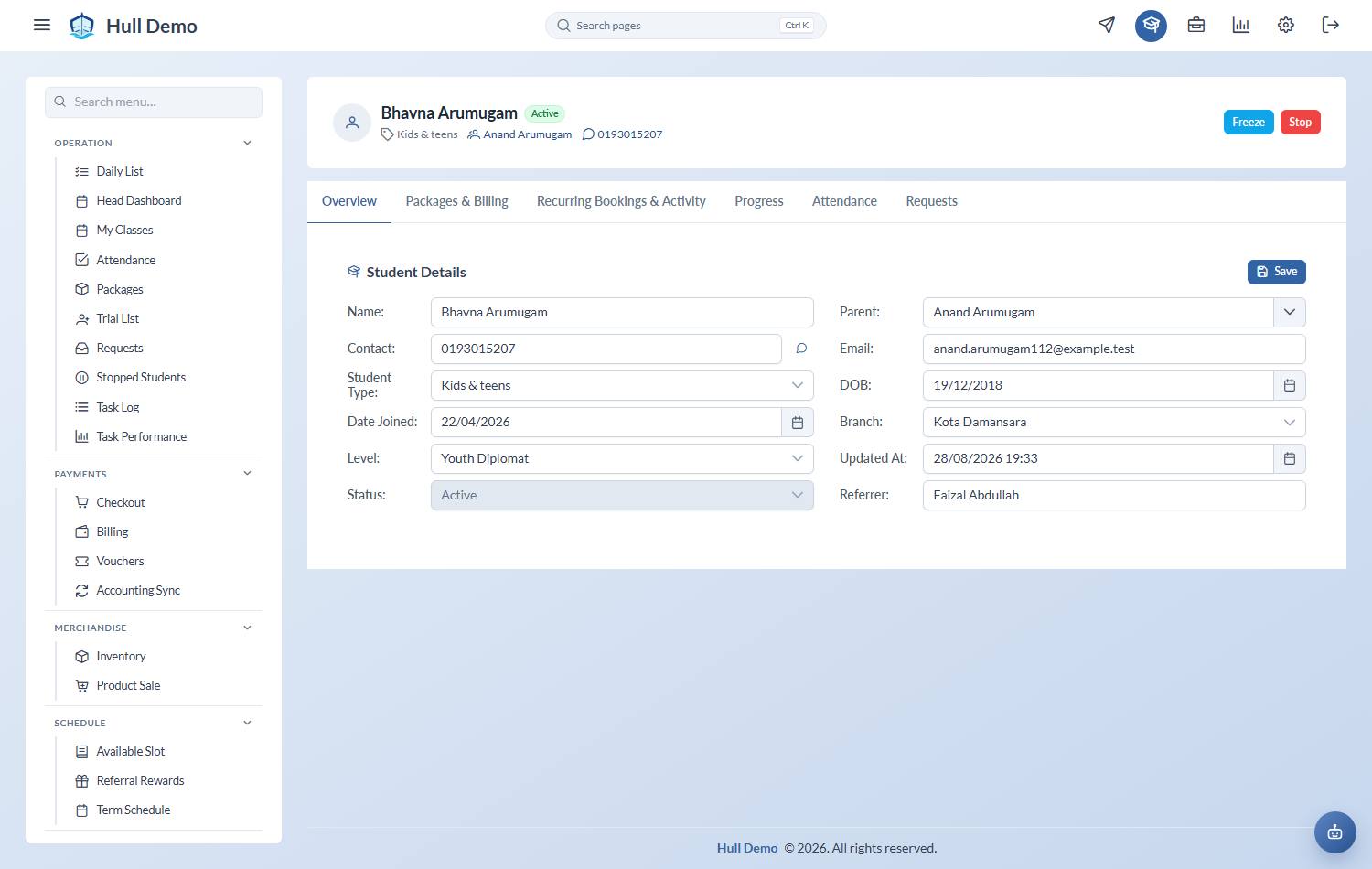
The header — who they are and where they stand
Name, contact, branch, level and Status. The buttons here are the lifecycle actions: Freeze, Stop, Activate. If it reads Freeze Pending, a freeze request has been raised and is waiting for approval.
Packages — what they have bought
Each package shows the credits remaining, the expiry, and which classes it is paying for. Show details opens the full picture, including where each credit went.
Spent and expired packages are hidden by default — Show expired/used brings them back when you need the history.
Bookings — where they sit each week
The recurring places this child holds: class, day, time, coach, and the package funding each one. End closes a booking; Manage opens the class itself.
A closed booking stays visible with the reason it ended — used up, cancelled, transferred, stopped. That history is usually the answer to "why did they disappear off the roster?"
Attendance — what has actually happened
Every session, with its status. This is where you check a disputed class: whether it was marked, whether it was confirmed, and whether it took a credit.
History & Notes — the story so far
One stream, newest first: every status change with its date, reason and ratings, and the notes staff have written — threaded under the event they are about, or standing on their own by date. Add note on any event, and Correct this on any exit whose reason turned out to be wrong. Anything the next person would want to know before picking up the phone belongs here. See Keep notes on a student's history.
Log Feedback opens the open-ended family feedback form for something a parent told you in person — separate from the history, because feedback is about the family and not about one event.
Requests and rewards
Freeze requests, extension requests and carry-forward requests appear as their own sections with their status. Manage jumps to the full request screen for approving or rejecting.
Straight to the family, or their chat
The parent's name on a student's profile opens their family record, and the phone number opens their WhatsApp conversation — because when a parent rings, the next move is nearly always one of those two, and searching the inbox for the number already on your screen is wasted time. The parent's own profile does the same with the number.
Both appear only where your academy runs the WhatsApp inbox and that family has a conversation to open.
Actions worth knowing
- Checkout — sell this family a package without leaving the profile.
- PDF — export a progress report for the parent.
- Copy — copy the child's details for pasting into a message.
Related: Take the register · Where a package's credits went · Stop a student.