
Correct a package after the sale售后修正配套
Wrong dates, wrong term, wrong number of classes — what you can safely change afterwards, and what needs a different tool.日期错、学期错、堂数错——哪些事后可以安全更改,哪些得换个工具处理。
这篇指南的正文目前只有英文版。标题、摘要与导览已翻译;内文仍在翻译中。
Some things about a package can be corrected after it is sold. The money cannot. Knowing which is which saves a lot of trouble.
1. Open the package
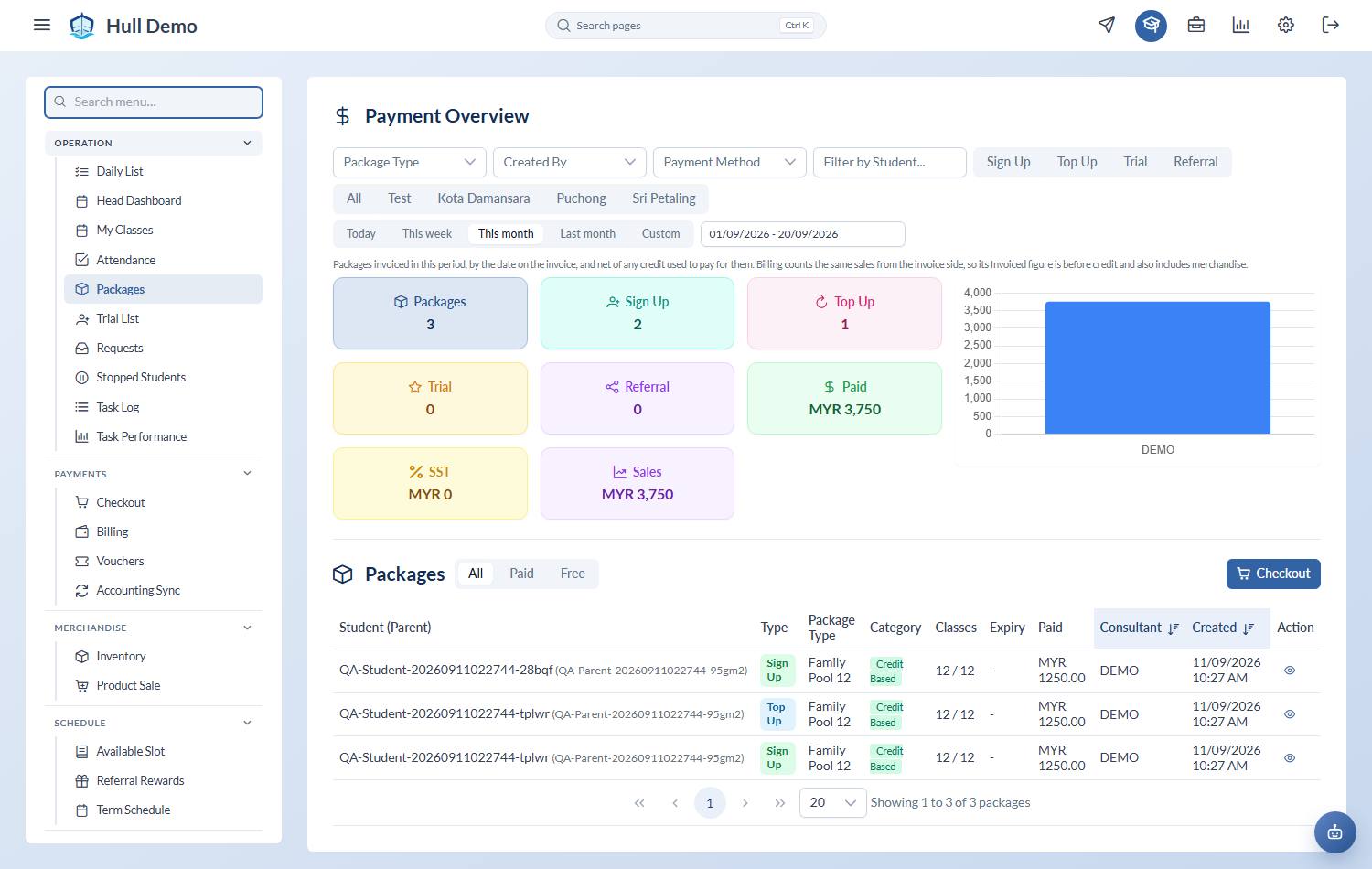
From the student's profile, open the package and choose Edit Package.
2. Change what needs changing
Typically the dates, the number of classes, or the term the package belongs to.
For a term package, Apply schedule dates fills the start and expiry from the term schedule rather than making you type them — which is the safer way to do it, because everyone on that term then matches.
Then Save Changes.
What you cannot change here
The price, the tax, or how it was paid. Money lives on the invoice, not on the package, and invoices are never edited. If the money is wrong:
- It was keyed today, nothing has happened yet and it was simply mis-keyed → void the sale.
- It was a real sale and the family is now leaving → cancel to credit.
Which children it covers is a decision made at the sale for family packages, and is not something to reshuffle afterwards — the credits already consumed belong to the children who consumed them.
Adding classes by hand
You can change the number of classes, and sometimes that is right — a goodwill class, a correction to a migration. But it is a change with no money attached, so it will not appear in revenue and will not be explained by anything except the remark you leave. Write one.
Related: Find out where a package's credits went · Extend a package · Set up your package types.