
Set up pay rates设定薪酬率
Decide what a coach earns — a basic, rates per class type, commission per package, and allowances.决定教练赚多少——底薪、各类课的堂费、配套佣金与津贴。
这篇指南的正文目前只有英文版。标题、摘要与导览已翻译;内文仍在翻译中。
Pay in Hull is built from a payroll profile. Most academies need only a handful of them, because a profile can be attached to a *level and role* rather than to a person.
Two kinds of profile
A standard profile applies to everyone who matches it. It can name a coach level, a role, or both:
- *Level 2, coach* — everyone at that level in that role.
- *Level 2* alone — everyone at that level, whatever they do. Useful when you pay by seniority and the job title does not change the rate.
- *branch admin* alone — everyone in that role, whatever their level.
When more than one could apply, the most specific one wins and is used whole: a person's own custom profile first, then level-and-role, then level alone, then role alone. Rates are never mixed from two profiles. The profile screen says in plain words who each one pays, so you can check before saving.
A custom profile is for one named person, when their arrangement genuinely differs. Use it sparingly: five custom profiles is a pay structure, thirty is a liability.
1. Open Payroll Profiles
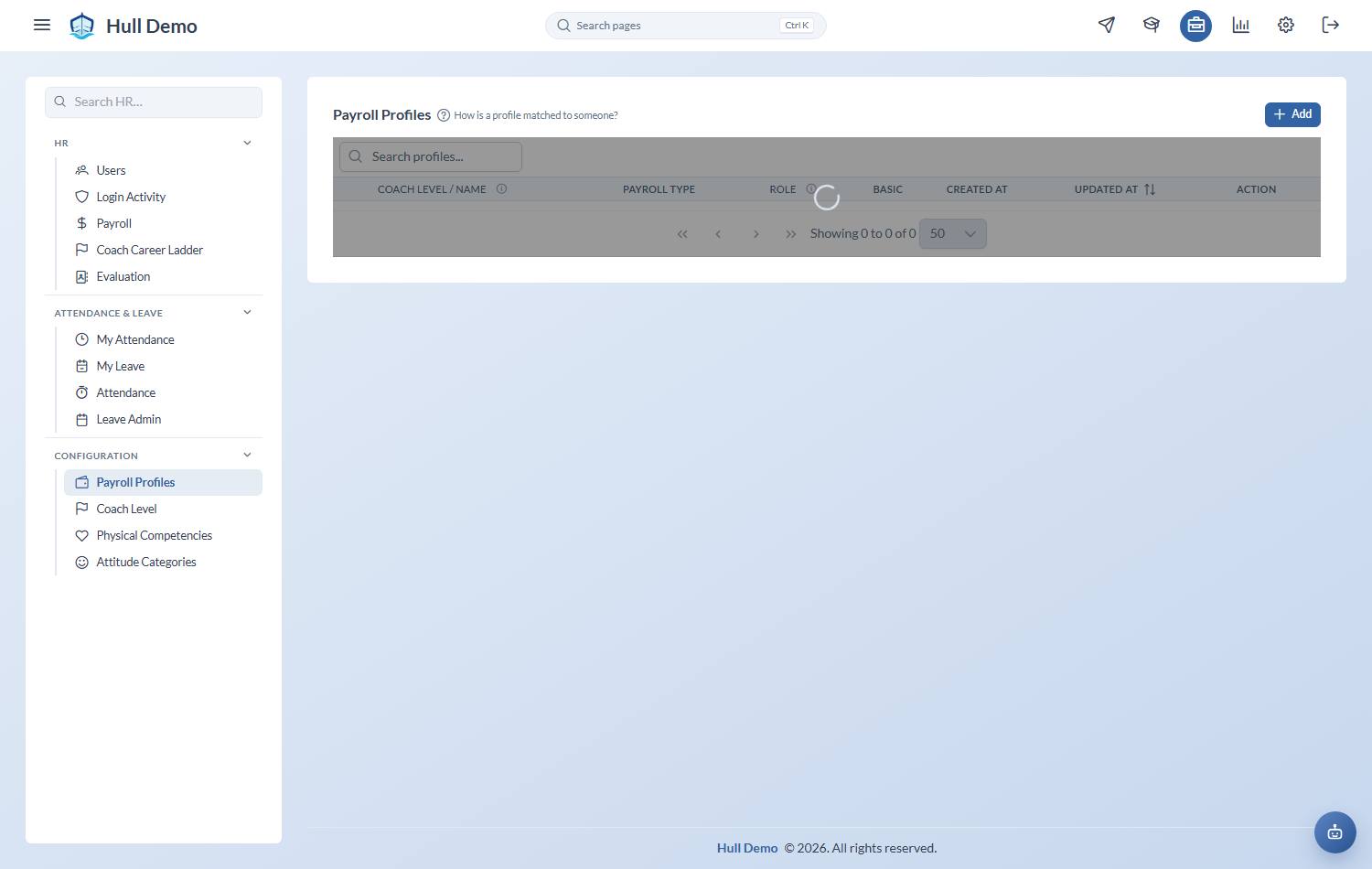
HR → Configuration → Payroll Profiles — the briefcase in the top bar — or from the payroll screen itself. Add to create one.
2. Set the basic
The base amount for the period.
For a custom profile there is a useful middle option — allowance only, where the basic and every class and package rate follow the standard profile for that coach's level and role, and only the allowances are personal. That way a coach with one extra allowance does not fall out of your standard structure and stop tracking future rate changes.
3. Add the rates that vary
- Per class type — what a session of each kind of class pays. This is where a private lesson can be worth more than a group one.
- Per package type — commission per billable class taught against that package. This is how a coach shares in what the family paid.
- Allowances — recurring monthly amounts on the profile: travel, phone, a branch responsibility.
4. Understand what a rate change does — and does not do
Rates are dated. A raise applies from its effective date forward; it does not rewrite payslips that have already been calculated.
The same is true of coach levels: payroll pays someone at the level they held during that month, taken from their level history, not the level they hold today. A promotion in June does not retroactively raise May.
Taking money off
A deduction is the mirror of a one-off allowance: one person, one month, a positive amount taken off, and a reason that prints on the payslip. Added from the Payroll page, exactly where allowances are.
One-off payments
A bonus, a claim, or a one-off adjustment is a one-off allowance, added from the payroll screen. It is filed against the month you are looking at, and the dialog says so before you save — "Credited to August 2026 payroll" — so it cannot land in a different month from the one you meant.
Two things both called "an allowance" are now labelled apart on the payslip: One-off, keyed in for one month, and Recurring, which a payroll profile creates fresh every month. If a payment seems to "carry over", it is almost always a recurring one coming from a profile, not the one-off you remember adding. Remove either from the payslip if it is wrong; a locked month refuses the change rather than pretending to take it.
Related: Check the month's payroll · Lock a payroll month · The coach career ladder.