
Add a staff user新增员工账号
Create a login for a new coach or admin, and give them access to the right branches — and only those.为新教练或行政人员创建登录账号,并只开放他们该看的分行。
这篇指南的正文目前只有英文版。标题、摘要与导览已翻译;内文仍在翻译中。
Access in Hull is per branch. Someone can be a coach at one branch and an admin at another, and the system treats those separately — so getting the assignment right is the whole job.
1. Create the user
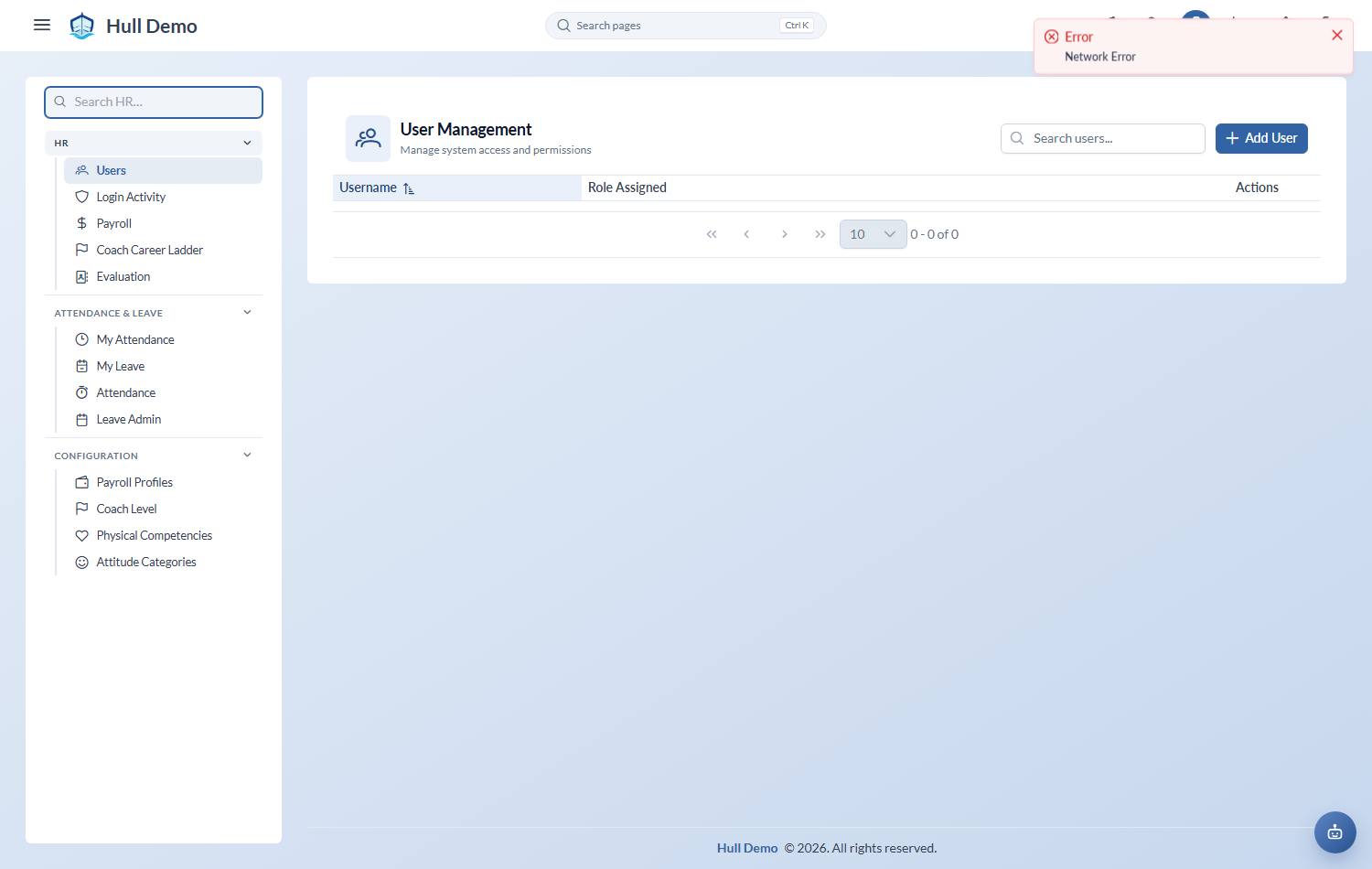
Management → Users, then Add User. Give them a username and create the account.
The password you set here is temporary, and the system treats it that way. The first time they sign in they are taken to a Choose a password screen and can do nothing else until they have set one. That is the point: you know the password you typed, so it is not a password that account should keep.
Passwords have to be at least eight characters with a mix of upper and lower case. The obvious ones are refused outright, and so is anything built out of their own username, their name or your academy's name — those are the first things anybody trying to get in would guess.
2. Assign roles
On the user, Assign Role: choose the role and the branch it applies to. Add more than one assignment if they work across branches.
The roles, roughly from most to least access:
| Role | Typically |
|---|---|
| su | the owner. Everything, including approvals and pricing |
| finance | payroll, revenue and the money screens |
| head | head instructor — confirms attendance, oversees instruction |
| branch_admin | day-to-day running of a branch |
| coach | marks attendance, records progress and assessments |
| part_time | a subset of instruction duties |
| marketer | the marketing funnel and enquiries |
Assignments carry an effective from date, so a promotion is dated rather than retrospective — which matters, because payroll pays people at the level they held *during* the period, not the one they hold today.
3. Check what they can actually see
Two separate things decide it:
- Their role, per branch, as above.
- What your academy has switched on. Menus are unlocked per academy and per role, so a role that exists is not necessarily a role that sees everything.
If someone reports a missing screen, check both before assuming a bug — see Who can see what.
Who sees a colleague's phone number and email follows the same grid: anyone you have allowed onto the Users page sees them, everyone else sees names only.
Their HR record
Employment details — join date, employment type, the HR side of the person — live on a card on this same user profile, not on a separate screen. Head coaches and the owner see it; nobody else does.
You do not choose an employment type. It is worked out from the roles you gave them, so a person's record and their access can never disagree.
Resetting a password
From the user's profile, Reset Password. Do it this way rather than sharing an existing login: a shared account makes the audit trail useless, and every action in the system is recorded against whoever performed it.
Resetting somebody's password does not count as them setting one. They meet the Choose a password screen again on their next sign-in, for exactly the reason a new account does — you know what you typed. Only setting it themselves, from their own profile, clears that.
Changing a password also ends every session that account had open, so if you are resetting because you think somebody else has been using it, the reset is enough on its own.
Deleting an account outright is restricted to the owner. Prefer removing the roles: a deleted account takes the readable name off everything that person did, and the record is worth more than the tidiness.
If somebody forgets their password
Where your academy has it switched on, the sign-in page carries Forgot password?. It asks for the email address on the account — staff sign in with a username, so the form says so — and sends a new working password to it. Signing in with that password lands them on the Choose a password screen, so the one we emailed is not the one they keep.
The reply is the same sentence whether or not that address is on an account here. That is deliberate: a form that says "no such account" is a way for a stranger to find out who works for you.
Signing in with Google
If your academy has it switched on, the sign-in page offers Continue with Google underneath the usual username and password. Password sign-in stays either way — this is offered alongside it, never instead of it.
It signs people in; it never creates anybody. The Google address has to already match the email on a Hull account you made, and a colleague who has never been added to Management → Users cannot let themselves in by having a Google account. Somebody who signs in this way has no password to set, so the Choose a password screen does not apply to them.
Ask us to switch it on for your academy.
Seeing who has actually signed in
HR → Login Activity — the owner's record of every sign-in: who, when, from what address and which browser, and every attempt that failed. It is append-only and kept for 90 days, and the username somebody typed at a failed attempt is never stored.
Two things to look for:
- Failed attempts clustered on one account. Either somebody has forgotten their password, or somebody is guessing at it.
- One browser used by several staff accounts — the page flags these. It usually means a shared computer, but it can mean a shared login, which is the thing that makes your audit trail worthless.
Who has access right now
The same screen answers the more urgent question, on its Who has access now tab: everybody who is signed in at this moment — the account, when they signed in, when they were last active, the address, the device, and when the session runs out. End next to any row signs that person out straight away, wherever they are.
"Who signed in" and "who is still signed in" are different questions, and it is the second one you want on the day somebody leaves.
Two things worth knowing about how long a session lasts:
- Staff are signed out after twelve hours of not touching it, and after seven days no matter how active. Twelve hours covers the longest day at the desk and nothing beyond it, so a browser left open at the counter is not still signed in the next morning.
- Parents are treated differently — thirty days idle, ninety days at the outside. A portal that keeps logging families out is a portal they stop using, and it holds far less than a staff login does.
Somebody can be signed in on more than one device at once, and each shows as its own row. Ending one leaves the others alone; to remove somebody properly, end them all, or take the account away.
Related: Who can see what · Set up pay rates · The coach career ladder.