
Extend a package's expiry延长配套有效期
Give a family more time to use classes they have already paid for — counted from the days they actually missed.让家庭有更多时间用掉已经付过钱的课——延到你指定的日期,并以缺席的课作为依据。
这篇指南的正文目前只有英文版。标题、摘要与导览已翻译;内文仍在翻译中。
An extension moves a package's expiry date without touching its credits. Use it for goodwill, for a delay that was the academy's fault, or for a family who ran out of time by a few days.
1. Raise an extension request
From the student's profile, choose the package and raise a package extension request.
The dialog opens on MC / Closure Dates, which is the normal way to do this.
1a. Say what happened, and when
Pick a Reason — a medical certificate, an academy closure, whatever your list holds — and then the dates. A period is either a single day or a from – to range, and you can Add another period as many times as the story needs: a week in hospital in March and three days in May are two periods on one request.
You do not work out the length. The dialog counts the classes that fall in those periods, turns them into whole weeks at seven days each, and shows you the resulting new expiry before you save — along with why any class was skipped, which is the part worth reading.
Three kinds of class are skipped, and all three are skipped on purpose:
- A day your academy was already closed. The family did not lose that class to their illness; they never had it.
- A class the child attended anyway. Being unwell on Tuesday and coming on Thursday means Thursday was not missed.
- A date already counted on another request — approved or still waiting. Without that, the same fortnight away can be paid for three times and nobody notices.
1b. Or set the date by hand
Under How to Extend there is a second option: Set new expiry date, for the cases the dates cannot express — goodwill, an apology, a mistake of your own you are making good.
It requires remarks. A hand-set expiry with no explanation is exactly what the periods replaced, so the form asks you to say why, and that sentence is what the approver reads and what anybody looking at the account in six months sees.
2. Wait for approval
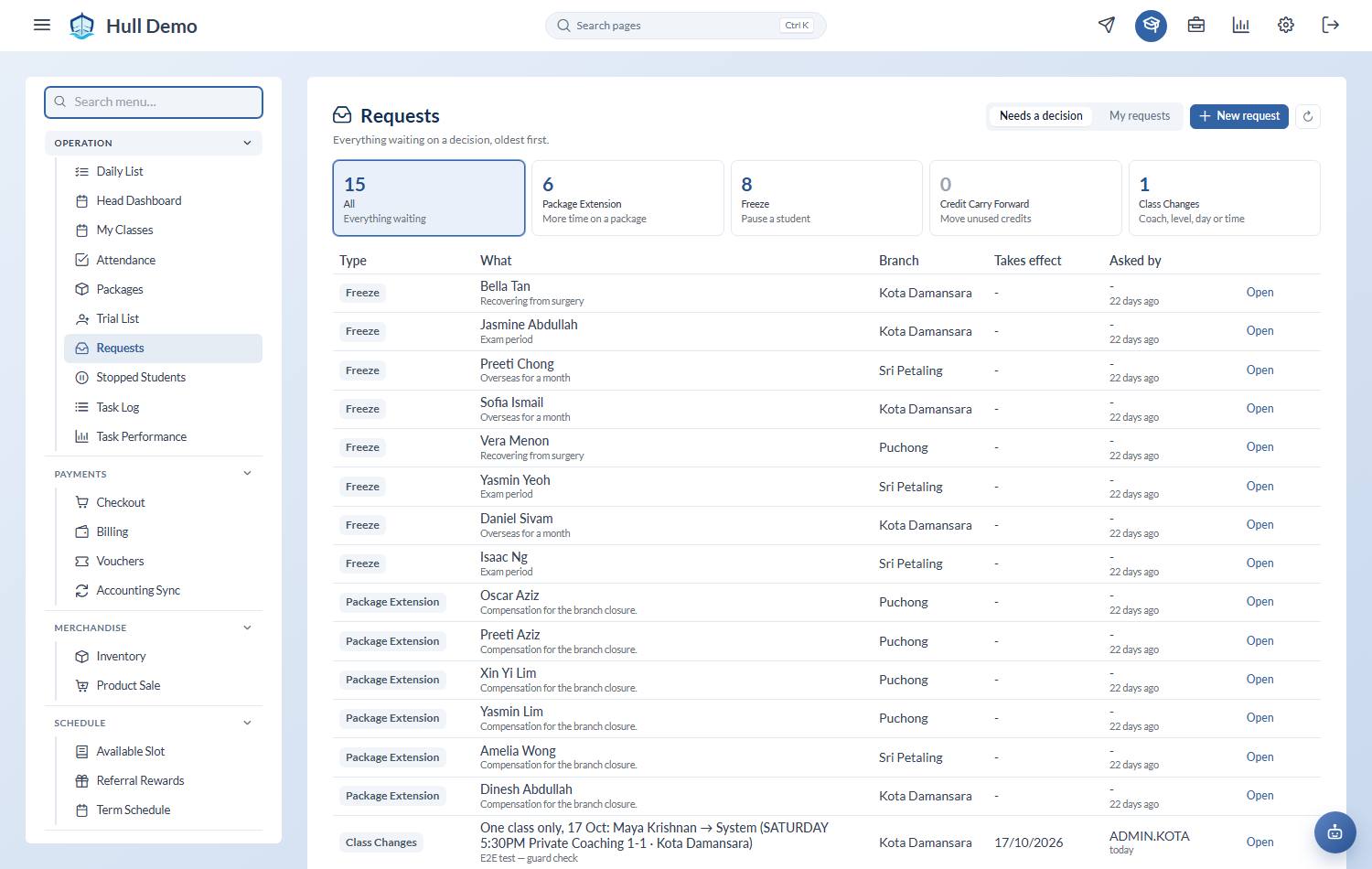
Extensions are approved by senior staff. Pending requests sit under Schedule → Package Extension.
What the approver sees
Opening a request shows the case for it, in the dialog, without going and looking things up:
- The package — what it is, what it cost, and how many classes are left.
- Its window, and every session inside it, with how they were marked.
- The periods claimed and their reason, with the classes each one counted.
- The dates — what it expires on today, and what approving would make it.
If the package's own expiry has moved since the request was raised — a freeze, or an earlier extension approved in the meantime — the dialog says so. Approving without noticing that is how a family quietly gets the same month twice.
A package type your academy has marked as not extendable says so here, plainly, rather than failing when somebody presses approve.
3. After approval
The expiry becomes the date that was asked for. Credits, price and rules are unchanged, and the child's bookings continue as they were. The absences that were ticked are now spent and cannot be claimed again.
A refused request lets its dates go, so they are available to whoever raises the next one. One rejection does not quietly burn a family's evidence.
What an extension does not do
- It does not add classes. The family still has exactly the credits they had. To give classes, sell or grant a package instead.
- It does not free a seat. The child stays booked in throughout, unlike a freeze.
- It does not change what was paid. The invoice is untouched.
Related: Freeze a package · Carry credits into another package · Close the academy for a day.