
Run a promotion推出促销
Set up a time-limited discount on chosen packages, so staff cannot get the price wrong at the counter.为指定配套设定限时折扣,柜台就不会把价格算错。
这篇指南的正文目前只有英文版。标题、摘要与导览已翻译;内文仍在翻译中。
A promotion is a discount the academy is running, defined once and applied at checkout by name. Setting it up properly means nobody has to remember what this month's offer was.
1. Open Promotions
Settings → Promotions — the cog in the top bar — under Pricing & Commerce. Then Add Promotion.
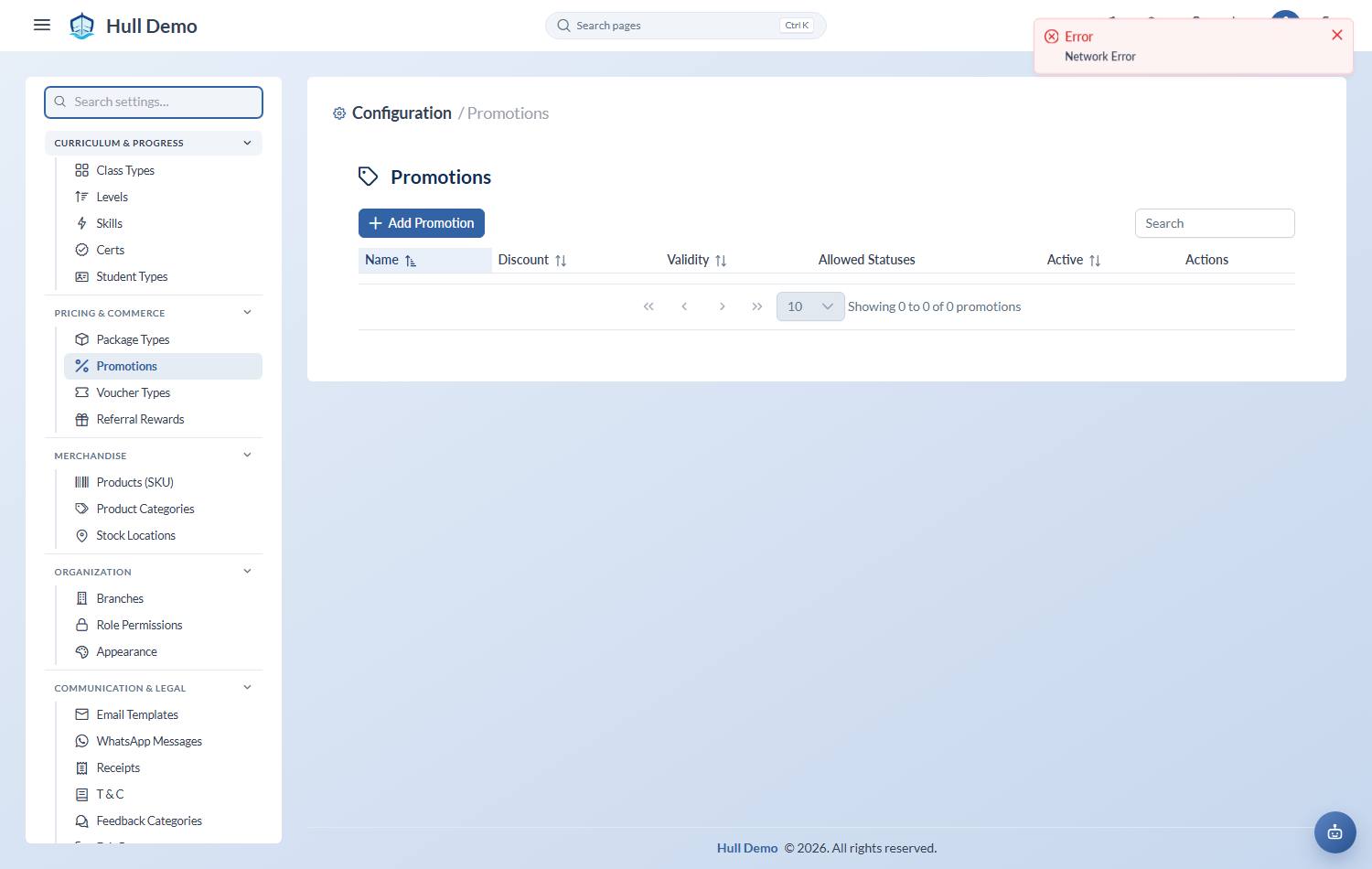
2. Define the offer
- Name — what staff will pick at checkout. Make it unambiguous: "March intake 15%", not "Promo 2".
- Package Types — which products it applies to. A promotion that applies to everything is rarely what you meant.
- Value Type — Percentage or Fixed amount.
- Discount — the percentage or the ringgit amount.
- Validity — the window it can be used in.
- Allowed Statuses — which kinds of student may use it. This is how you make an offer that only new sign-ups get, or only existing families.
Then Create.
3. Check it applies as you expect
Price one cart before you announce it. On the checkout line, Apply promotions should offer it, and the total should move by what you intended.
Remember the order things apply in: percentage discounts first, then fixed ones, then SST on what remains. A percentage promotion combined with a voucher is not the same as the two added together — see Apply a discount.
Who a promotion is for
A promotion can be limited to students at a particular point in their life with you — a first-time sign-up offer that existing families should not get, for instance.
That restriction is now enforced at the price itself, so the quote a member of staff sees, the checkout, a bill-later and the card terminal cannot disagree. It was previously shown on the page, handed to the WhatsApp assistant, and checked nowhere — "trial students only" bought you nothing, and anyone could be given the discount.
- Leave it empty and it means anyone.
- On a package shared between children, every student on it must qualify — one price, one answer.
- Merchandise is exempt: goods are sold to a parent, so there is no student whose status could be checked.
4. Let it expire
Do not delete a finished promotion. Let its validity window close: the sales that used it keep their explanation, and next year you can see whether it worked.
Whether the WhatsApp assistant quotes it
A promotion is not automatically something the assistant tells people about. One switch on Marketing → AI Agent → What it can do decides:
- On — an enquiry asking about prices is quoted the offer, with the before and after figures and the end date.
- Off — the assistant quotes your normal price and never names an offer. Your desk still applies it exactly as before.
With it off the assistant will not say there are no offers — it says the branch may have something available and to ask there. Denying an offer that exists costs a sale; so does quoting one you meant to keep for the counter.
Related: Apply a discount · Issue a voucher · Sell a package.