
What is on the Configuration page配置页上有什么
One screen holds everything that makes the system yours — the curriculum, the catalogue, the pay structure, the branches.一个画面装着所有让系统变成你的东西——课程体系、产品目录、薪酬结构、分行。
这篇指南的正文目前只有英文版。标题、摘要与导览已翻译;内文仍在翻译中。
Settings — the cog in the top bar — is where your academy is defined. Almost nothing here is code: it is your curriculum, your products and your structure, expressed as settings.
The top bar decides which sidebar you get
The five icons at the top right switch the whole left-hand menu between areas:
| Icon | Area | What its sidebar holds |
|---|---|---|
| Graduation cap | Operation | the day-to-day — registers, students, money, schedule, and the news and events you publish |
| Megaphone | Marketing | enquiries, the lead queue, campaigns and the marketing settings |
| Briefcase | HR | staff, payroll and the people settings |
| Chart | Reports | every dashboard and report, grouped by department — Marketing, Sales, Operation, HR |
| Cog | Settings | everything that defines the academy |
If a screen you expect is missing from the sidebar, you are almost certainly in the wrong area. Ctrl+K searches every area at once and is usually faster than hunting.
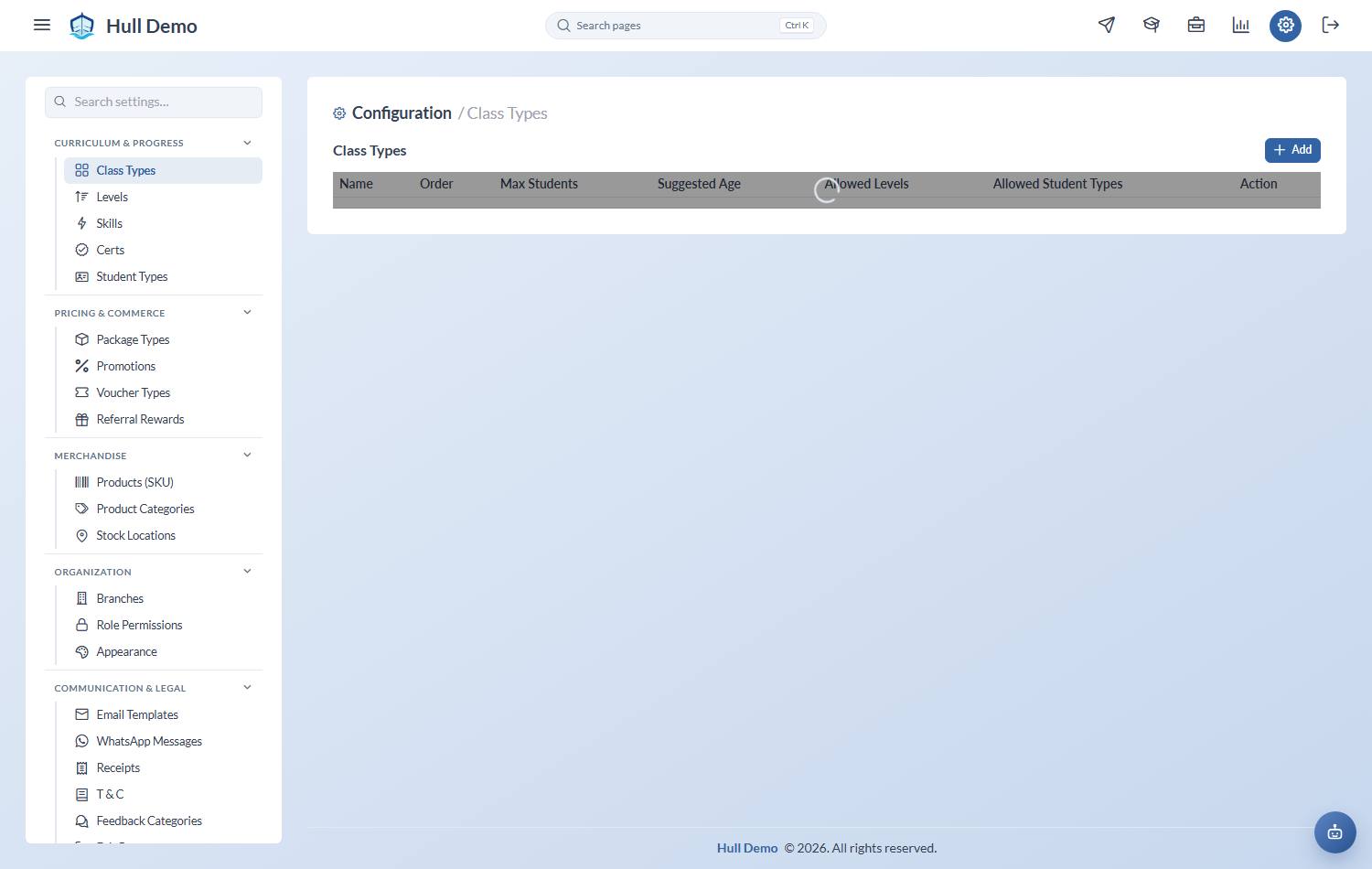
Curriculum & Progress
| Setting | What it decides |
|---|---|
| Class Types | the kinds of class you run, their capacity, and who is allowed in |
| Levels | the rungs of your progression ladder |
| Skills | the competencies inside each level |
| Certs | the certificates you issue |
| Student Types | your student segments, and how the system treats each |
Pricing & Commerce
| Setting | What it decides |
|---|---|
| Package Types | the products you sell and the rules attached to them |
| Promotions | time-limited discounts |
| Voucher Types | the templates vouchers are issued from |
| Referral Rewards | what a parent earns for each family they refer |
| Marketing Channels | the sources you track enquiries against — lives under Marketing → Configuration |
Staff & Payroll — under HR → Configuration
These four are reached from the HR area (the briefcase), not from Settings.
| Setting | What it decides |
|---|---|
| Coach Level | your internal seniority ladder |
| Payroll Profiles | what people are paid |
| Physical Competencies | practical capabilities you track |
| Attitude Categories | the conduct categories staff entries are logged against |
Merchandise
| Setting | What it decides |
|---|---|
| Products (SKU) | the items you sell besides classes — uniforms, books, equipment |
| Product Categories | how those items are grouped |
| Stock Locations | the places stock physically sits — store room, counter, second outlet |
Only appears if your academy has the inventory module. See Sell merchandise and Track stock.
Organization
Branches — your locations. Classes, students and every report are scoped to one, so this is the most structural setting in the system.
The branch dialog also edits the photo, address and contact number — these feed the parent app's Contact Us page, so a blank address there is filled in here — and each branch carries an Offer this branch to new enquiries switch, for a site that is full, closed or run privately. See Set up the AI agent.
Academies with the card terminal module will also find each branch's terminal credential here — owner only, shown once when regenerated. See Take card payments on the terminal.
Appearance
Appearance holds your brand colours for the staff app and the parent portal. Dark mode is not here — each person picks that for themselves, from their own profile menu. See Set your academy's colours.
Communication & Legal
Email Templates, WhatsApp Messages, T & C — the terms parents sign digitally — Feedback Categories, the topics you tag feedback against, and Exit Reasons: one list for each way a student leaves — stopping, declining after a trial, freezing — because a trial declines for reasons a paying student never would. *Other / not given* is always there, so no exit is ever blocked for want of a tidy reason.
{{token}} after sending it. You cannot add or delete one. The messages are the ones Hull actually sends, so an invented template is one nothing would ever use, and a deleted one would take a real message down with it.Receipts
Receipts holds your receipt branding — the logo, the header and footer text, the details that appear on every document you hand a family. Change it here rather than asking for a code change.
Some academies also have a custom receipt layout of their own; where one is set up, this screen still controls its branding, and the standard layout is used as a fallback if anything is missing.
Two things worth knowing before you change anything
Some settings are structural. Levels, class types and branches have students and history attached. Adding is safe; reordering or removing something in daily use is not, and it is worth thinking a step ahead.
Not every academy sees every tab. What appears depends on what your academy has switched on. A missing tab is usually an account-level setting rather than a permission — see Who can see what.
Related: Set up your package types · Set up your class types · Set up your student types.