
Book a trial安排试课
Take an enquiry and get the child into a trial class, with the details you will need later to prove where they came from.把询问变成一堂试课,并留下日后要用来追溯来源的资料。
这篇指南的正文目前只有英文版。标题、摘要与导览已翻译;内文仍在翻译中。
A trial is where almost every paying family starts. Two fields on this form — the channel and the referrer — are what later tell you which marketing actually works, so they are worth thirty seconds now.
1. Open the Trial List
Operation → Trial List, then Add Trial Student.
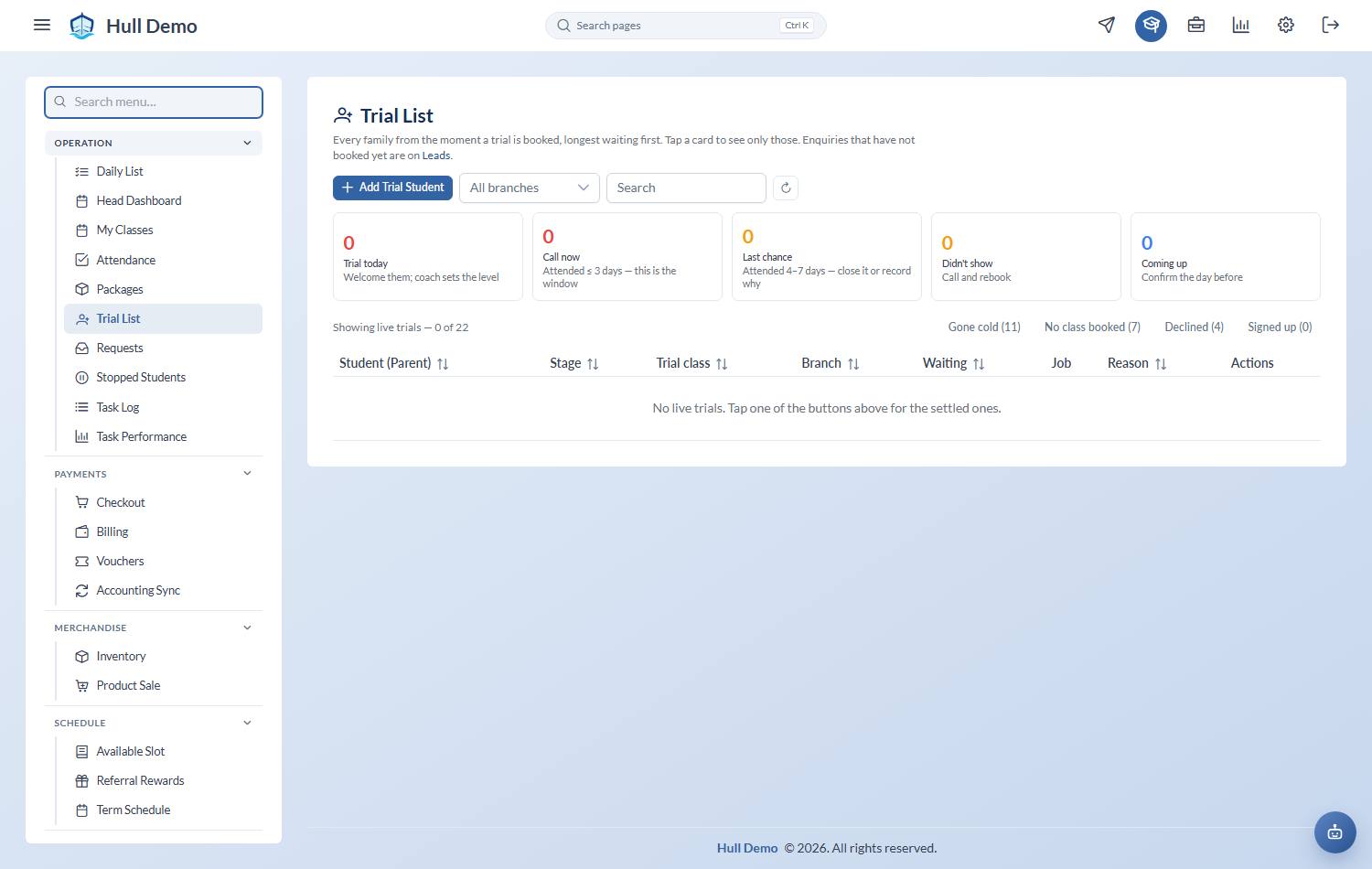
2. Enter the child and the parent
Name, date of birth, contact number, and the Student Type — the segment your academy uses to group students. The student type decides which levels, class types and packages this child can be offered, so pick it correctly.
Search for the parent by name if the family is already with you; a sibling enquiry should attach to the parent you already have rather than creating a second one.
3. Record where they came from
Choose the Channel — the marketing source that produced this enquiry — and, if someone recommended you, search for the referrer by name.
The referrer is not a courtesy field. When this child later buys their first package, the referring parent's reward is earned automatically off this link — and handed straight to the referrer's child when there is only one it could go to.
4. Schedule the trial class
Pick the class and date for the trial. The child appears on that day's register like any other student.
The lead follows the child
If this family first reached you on WhatsApp, booking the trial here now moves their lead along with it. It used to not: a child could be in the water on Saturday while their enquiry still sat under *Enquiry* on the Leads page, because the two doors into a trial — the Trial List and approving the assistant's proposal — did not tell each other anything.
Nothing for you to do; it is the same button. It does mean the Leads page finally reflects the desk's work as well as the inbox's.
What happens next
The student sits at Trial until the class happens. After it, you record the outcome — that is a separate job, and the one that converts: After the trial.
Related: Add a student · Work today's follow-up list · The student lifecycle.