
Take the register点名
Mark who turned up, handle a late cancellation, and finalise the day so the marks are locked.记下谁来了、处理临时取消,然后结算当天,把记录锁定。
这篇指南的正文目前只有英文版。标题、摘要与导览已翻译;内文仍在翻译中。
Marking the register is what charges families and what pays coaches, so it is worth doing once, properly, on the day.
1. Open the day
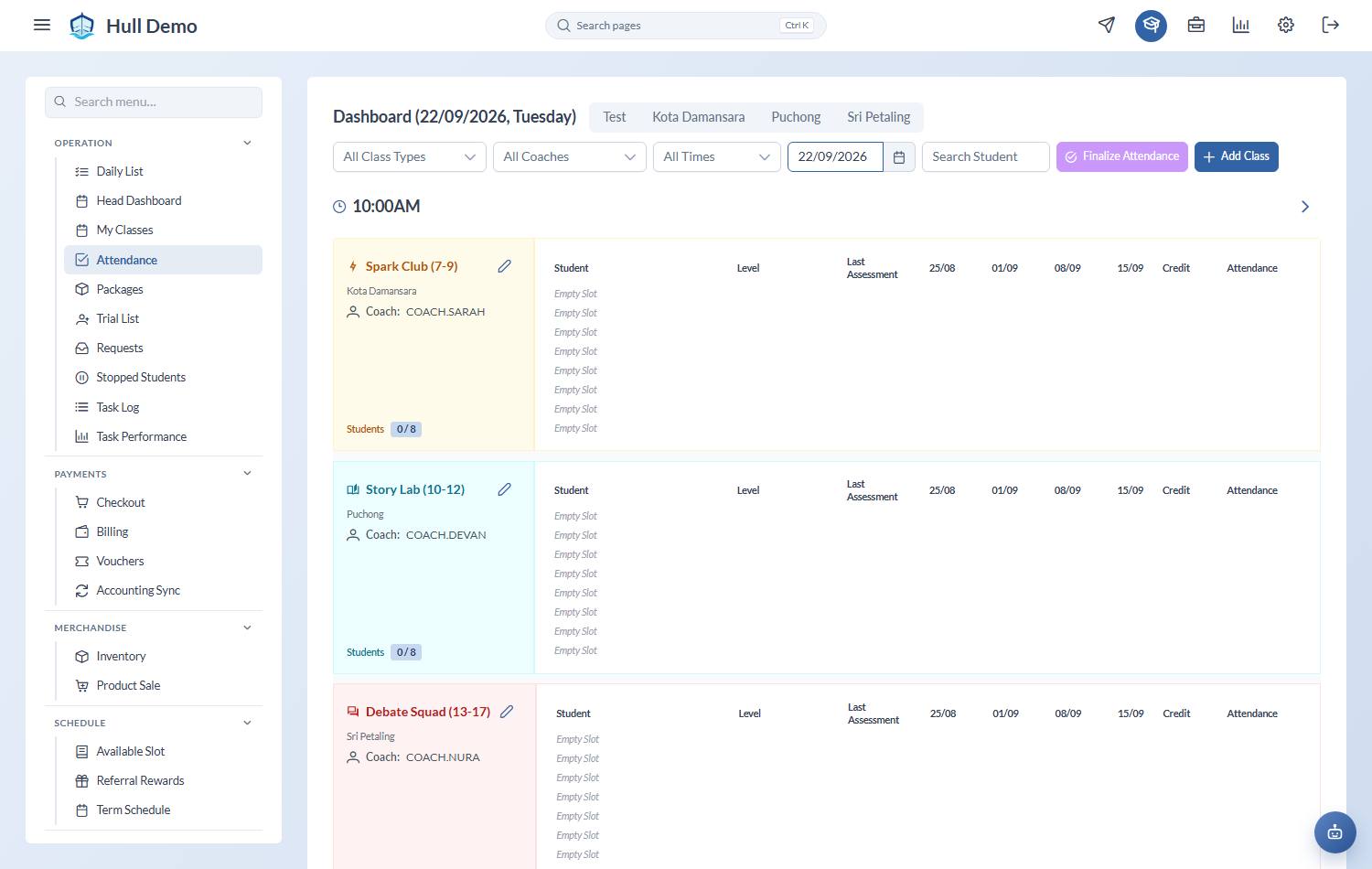
From the sidebar, Operation → Attendance, then pick the branch and the date. Classes for that day appear with their students underneath.
As you scroll down a long register, a slim bar stays pinned at the top carrying the branch and the date you are marking, with arrows to step a day either way and a jump back to today. Marking the wrong day is the expensive mistake on this screen; that bar is there so you never have to scroll up to check.
2. Mark each child
Set each child to Present, Absent or Missed. Anyone left alone stays Unsure, which charges nothing.
Use Missed for a late cancellation or a no-show your academy charges for. It records the child as absent while still taking the class off their package — see Attendance statuses explained.
3. Finalise the day
When the day is done, finalise it for the branch. Finalising locks the marks so they cannot drift afterwards — which matters, because payroll is calculated from confirmed attendance.
Finalising is restricted to senior staff, and so is undoing it.
Two desks on the same class
Where more than one computer is marking the same register, each screen now keeps up with the other. The register refreshes itself every few seconds while you have it open, so a child marked on the other machine appears on yours without anyone pressing anything.
And if you mark a child whose status changed on another screen while you were looking at yours, the mark is not silently accepted. Hull tells you what the other screen set, who set it and when, repaints the row, and asks whether you still mean to replace it. Say yes and it goes through.
When something will not mark
"This session is no longer on the schedule." The class was changed or moved after this roster was opened. Refresh and mark on the current session. This guard exists to stop a family being charged twice for one class.
The child is not on the list. They are not booked into that class. Book them in first — a make-up or a one-off booking still needs a package behind it.
Nothing happens when marking Present. The child holds no package with credits left. Check their profile: the package may have expired or run out.
When the system asks which package to use
If the package paying for that seat has run out and the family holds more than one that could take over, you will be asked to choose before the mark goes through. Pick the package you would have picked at the counter — the dialog shows credits left, expiry, and any sibling sharing the pool.
Related: See who is in class today · Confirm the day's attendance · Packages, credits and seats.