
Create a class开设班级
Set up a recurring weekly class. The system then generates its actual sessions for you, weeks ahead.设定每周固定的班。系统会替你把往后几周的实际堂次生成出来。
这篇指南的正文目前只有英文版。标题、摘要与导览已翻译;内文仍在翻译中。
A class in Hull is a *recurring* slot — a day, a time, a branch, a class type and a coach. You create it once; the dated sessions your registers are built from are generated automatically, several weeks in advance.
1. Open Attendance and add a class
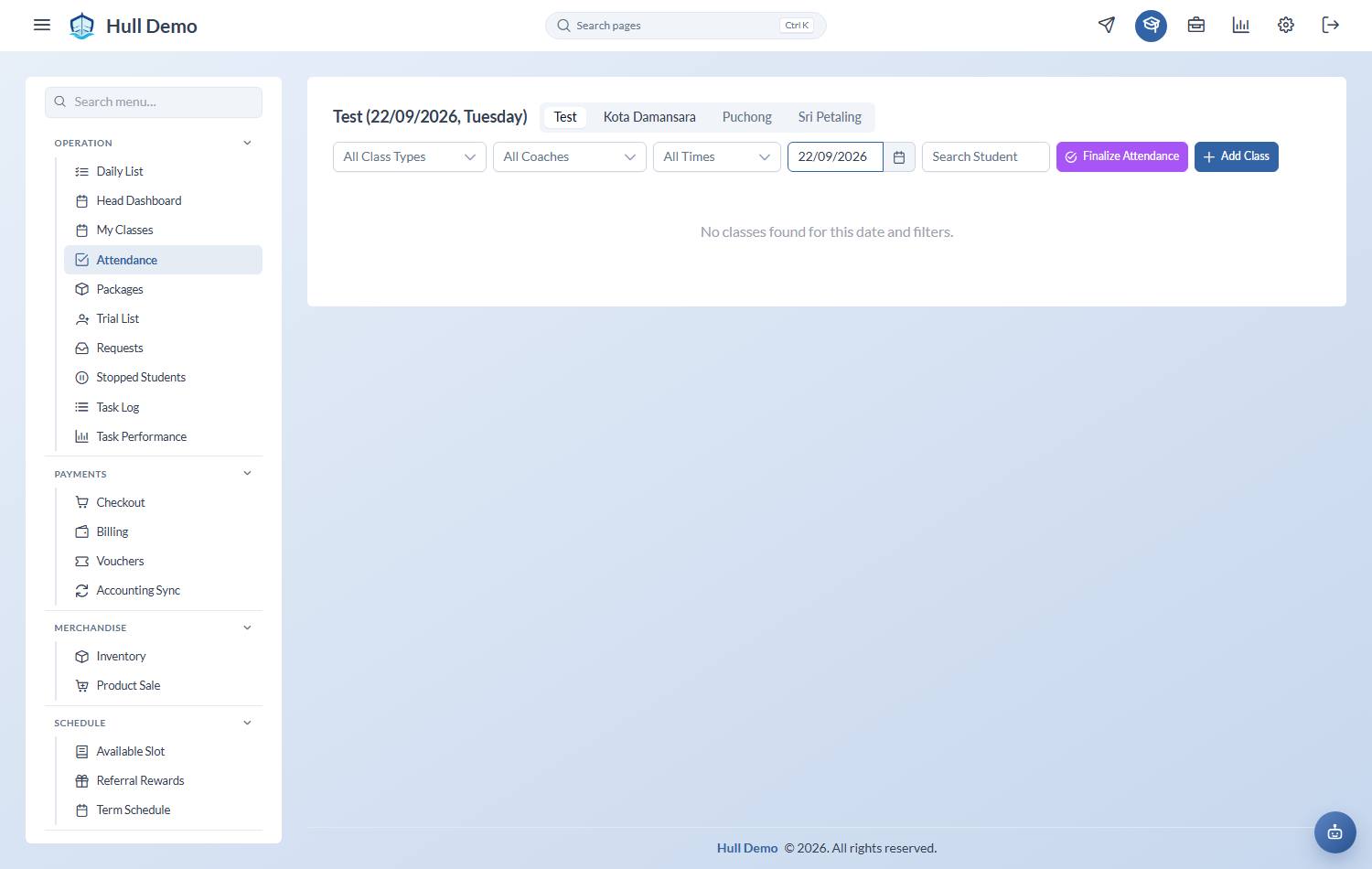
Operation → Attendance, then Add Class. The Create Class dialog opens.
2. Fill in the slot
- Branch — where it runs.
- Class Type — this is the important one. It carries the capacity, and the levels and student types allowed in the class. A child outside those rules cannot be booked in.
- Day and Time — the weekly slot.
- Coach — who normally teaches it.
Then Create.
3. Check the sessions appear
Dated sessions are generated ahead of time from the recurring definition, so the class should start appearing on the attendance screen for coming weeks. There is nothing to create by hand week to week.
Changing a class later
Open the class from the attendance screen or from Schedule → Available Slot:
- Change Coach — for a permanent change of teacher.
- Change Class Type — changes the rules and capacity that apply.
- Set Inactive — stops it running without deleting the history. Use this rather than deleting a class that people have attended.
Covering one week only
To put a different coach on a single session, open that session from the attendance screen and change the coach there. It applies to that date only, and the payroll for that session follows the coach who actually taught it.
Related: Check what is full and what is empty · Book a child into a class · Close for a holiday.