
Review and pass an assessment评审并通过一次评估
Decide the result. Passing moves the child up a level, so it is worth being deliberate.决定结果。通过就代表孩子升级,所以值得慎重。
这篇指南的正文目前只有英文版。标题、摘要与导览已翻译;内文仍在翻译中。
Assessments are carried out by instructors and decided at review. Separating the two keeps standards consistent across coaches, which is the whole point of having levels.
1. Open Assessments
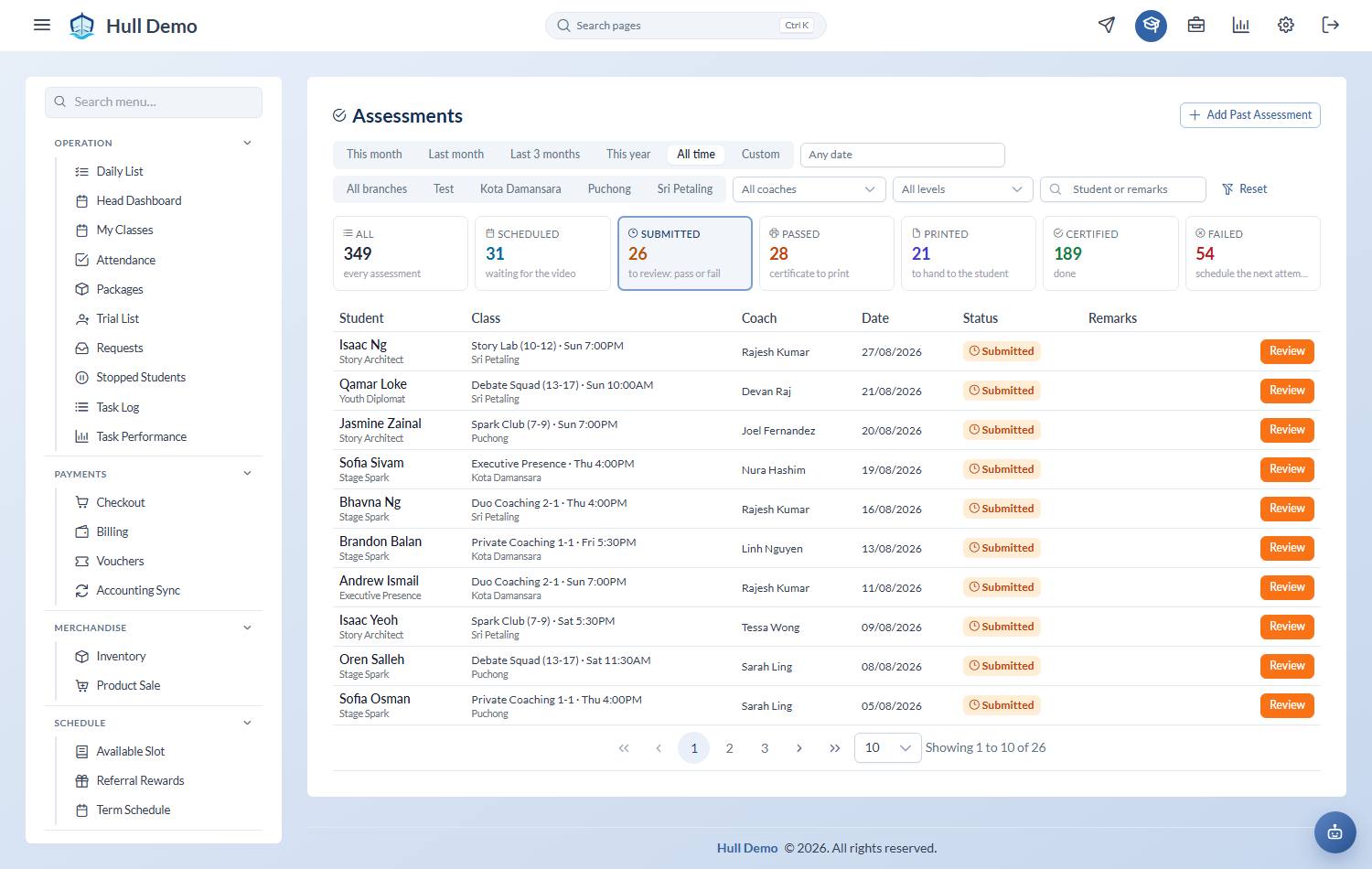
Student Progress → Assessments — one screen for the whole journey. The status cards across the top (Scheduled, Submitted, Passed, Printed, Certified, Failed) are the filter, and each says whose move it is: *to review*, *certificate to print*, *to hand to the student*. Click Submitted to see what is waiting for a result.
The table shows the class and the coach beside the student and level, and can be narrowed by date range, coach, level or student name. The date filter starts on *any date* on purpose — a work queue must never hide old work.
2. Open one and read the detail
The dialog shows the student, the level, the class and coach, the notes, and a video if one was recorded. The child's ticked skills for that level are the evidence behind the recommendation. It offers whichever action the status calls for — pass or fail here, mark printed or mark certified further along — so nobody hunts for the right button.
3. Decide
Pass or Fail.
- Pass qualifies the child for the next level, and puts a certificate in the queue to be issued.
- Fail keeps them where they are. Nothing is wasted — the outstanding skills stay visible, so the coach knows exactly what to work on. A fail stays failed: no re-test is booked automatically. The next attempt is scheduled from the class when the child is ready — see Schedule an assessment.
For some student types, passing does more
Where your academy has configured it, passing an assessment also marks the skills of every lower level as complete — for children who plainly demonstrate the basics on the way through, rather than being walked through each one.
That is a setting on the student type, so it may apply to some of your segments and not others.
Related: Issue a certificate · Tick off a skill · Set up your student types.